Quick Start
Connect your device to Android and explore the app
Before connecting, ensure that your device is turned on and your phone is prepared.
When you launch the application for the first time, it will automatically open the device selection dialog. You can connect to the device via Bluetooth and USB interfaces. To connect the device to a phone or tablet via USB, you need to use an OTG cable.
To connect the Radiacode device to your smartphone via Bluetooth, you don't need to pair the device through your smartphone's Bluetooth settings. There's no need to enter any connection codes either.
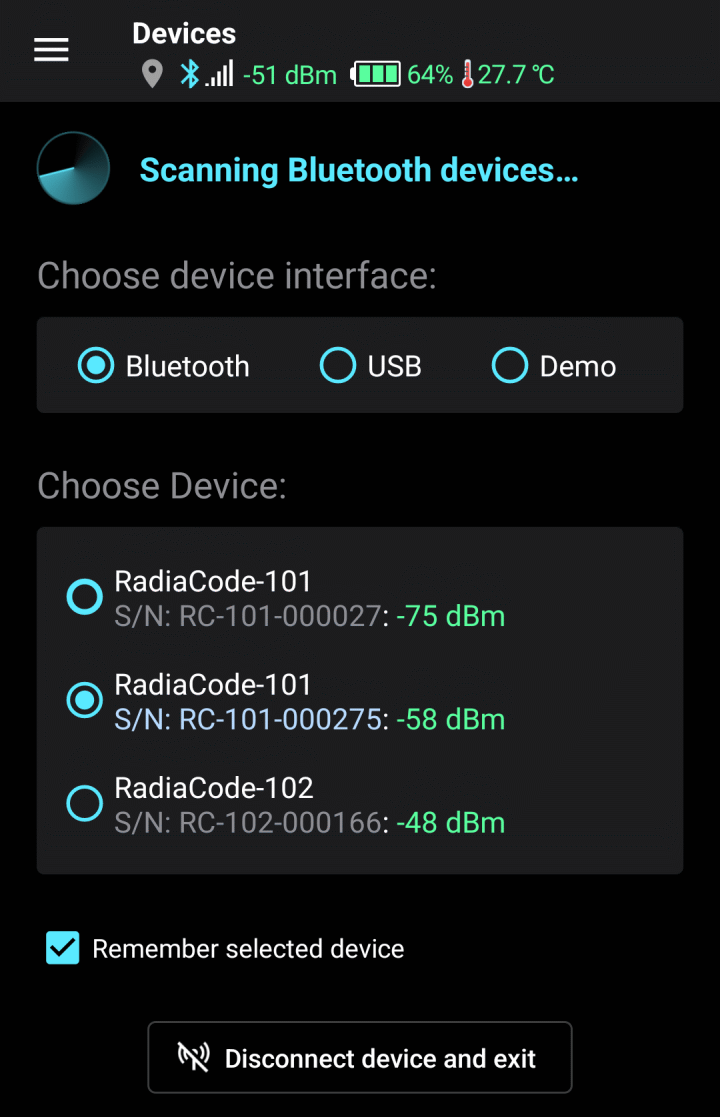
Device selection dialog within the app
Tap the “Bluetooth” label. If Bluetooth is not enabled on your phone, the application will prompt you to enable it. Confirm that you allow the app to turn on Bluetooth. If your phone does not support Bluetooth version 4.0 (Android OS version is less than 6), a corresponding message will be displayed. The device cannot be operated with such a phone via the Bluetooth interface.
Additionally, the app requires location access permission to function. This is a requirement of the Android OS to work with Bluetooth Low Energy.
Soon, the device name "RadiaCode" will appear in the "Choose device" field. This indicates that the application has found the device via the Bluetooth interface. Detection may take some time. Keep the "Remember selected device" checkbox enabled, and the application will automatically connect to the device in the future. If the application does not find the device for an extended period, try following these recommendations.
Tap the “OK” button at the bottom of the screen. This will open the main screen. Communication with the device will be established, and the device will be initialized, which will take a few seconds.
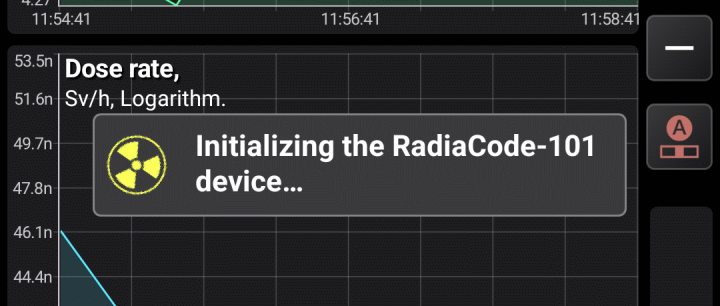
Device initialization notification
Once initialized, the application will continuously receive data from the device, even if another application is in the foreground. The application's activity is indicated by the icon in the notification area:
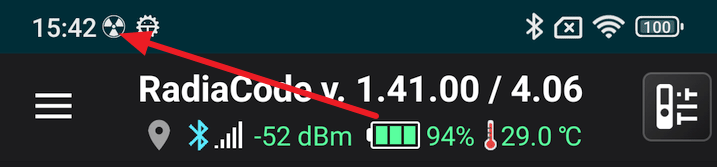
Observe the icon in the notification tray
If you pull down and open the notification screen, you will see the current values of the count rate and dose rate displayed in the device's information field. Tapping this notification will open the application:
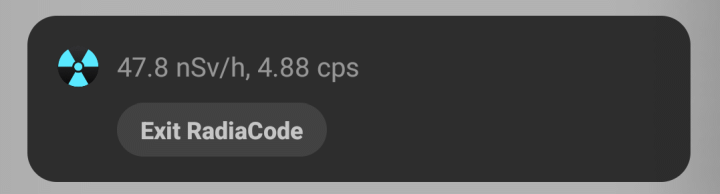
Tapping this field in the dropdown opens the Radiacode application.
Updated: Jan 8, 2026