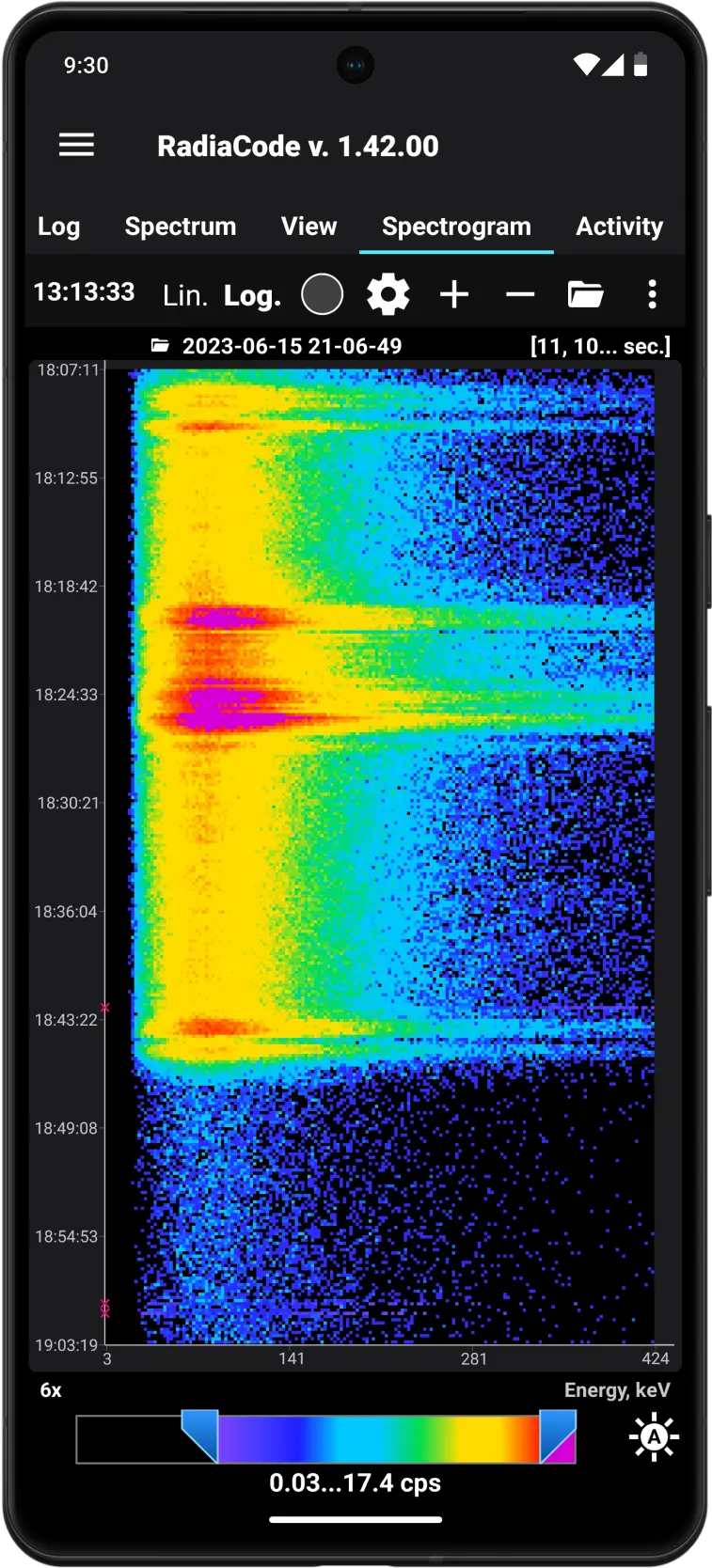
Spectrogram

Overview

A spectrogram visually represents the energy spectrum of photon (gamma and X-ray) radiation as it changes over time.

The Spectrogram tab shows a plot of either the spectrogram currently being recorded or the one loaded from the Spectrogram Library. Unlike spectra, there is no separate tab for viewing spectrograms.
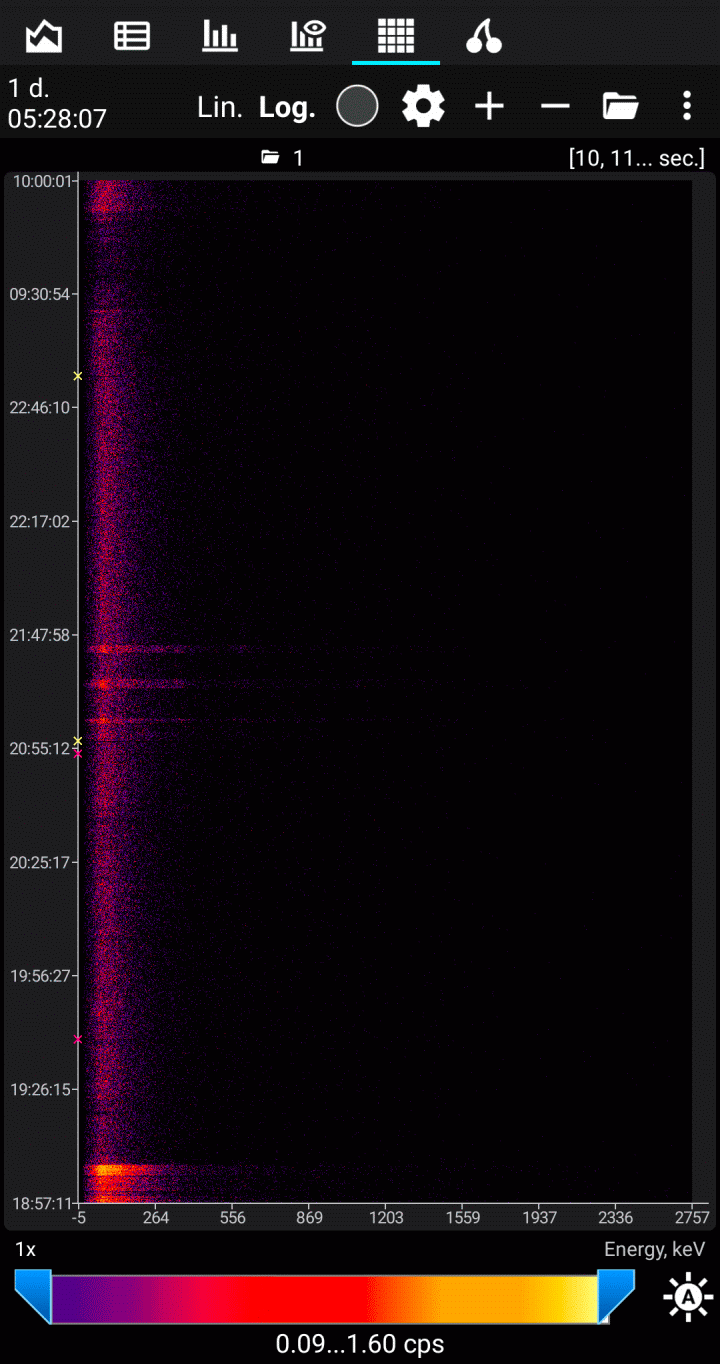
Each line on the vertical (Y scale) represents a separate spectrum captured during the "Capture Interval." The interval size can be adjusted in the settings. The horizontal (X scale) displays either spectrum channel numbers or photon energy, calculated similarly to the Spectrum tab. The count rate in each individual channel (Z scale, akin to the Y scale in the Spectrum and View tabs) is converted to a brightness or color scale, which can be zoomed using the sliders below the spectrogram. By pressing the icon button, the scale is automatically adjusted to the minimum and maximum values of the recorded or selected spectrogram from the library.

The energy lines on the spectrogram will appear as vertical bands. The emergence of new bands will indicate a change in the spectral composition of the detected radiation. The Y-axis can display calendar time, spectrogram accumulation time, or countdown number.

The total spectrogram accumulation time and capture interval are shown at the top left.

A long press on the chart reveals the marker lines and a "magnifying glass" that enlarges the section of the chart at the intersection of the marker lines:
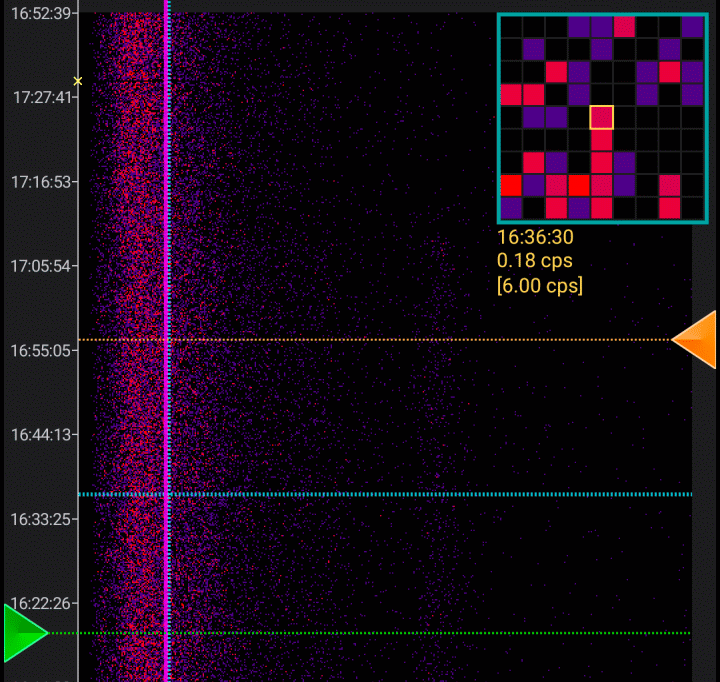
Under the magnifying glass, information about the spectrum channel at the center is displayed: its corresponding time or count number, count rate (number of pulses in this channel divided by spectrum accumulation time), and, in square brackets, the total count rate for the spectrum (sum of pulses in all channels divided by accumulation time).

ButtonDescription

icon Play

icon

Start or stop the spectrogram recording. Once stopped, you can resume recording. When you exit the application, the spectrogram recording will also stop. Every minute, the recorded spectrogram is automatically saved in the library.

Loading a spectrogram from the library does not stop the spectrogram recording; it continues in the background.

icon

Opens the settings for the spectrogram plot. In these settings, you can choose:

  • Capture Interval: the frequency at which the spectrum "snapshots" (counts) are taken. Each sample (spectrum) is represented on the plot by a series of horizontal squares. Acceptable values range from 1 to 600 seconds. Because the device's timer is not precisely synchronized with the smartphone's timer, the intervals for accumulating spectra received from the device may vary by ±1 second.
  • Maximum number of samples: Spectrogram buffer capacity. If the number of counts in the recorded spectrogram reaches the specified value, the oldest count is removed before adding a new one. The maximum buffer capacity is 10,000 counts.
  • The minimum and maximum values of the scale: the count rate limits for the engine at the bottom of the tab, which control the brightness/palette of the plot. The squares of counts where the count rate value is outside the specified range are displayed with border colors (start/end of the color scale).
  • Auto brightness: do not exceed the boundary: The minimum and maximum values of the scale can be automatically adjusted by the application if the calculated values exceed the limits icon the calculated minimum and maximum values are outside the limits specified in the settings. Enabling these options prevents the engine values from exceeding the specified limits.
  • Scale:If you choose the logarithmic scale, the decimal logarithm is derived from the count rate value before calculating the brightness or color of the square. You can quickly switch the scale using the "Lin." and "Log." icons, or by double-tapping the plot.
  • Merge channels by:To accelerate the rendering of large spectrograms, you can merge spectrogram channels in groups of 2 or 4. When merging, the number of pulses in the adjacent 2 or 4 channels is summed. Consequently, the displayed spectrogram will have 512 or 256 channels, respectively.
  • Y-axis units: You can choose the calendar time (measured from the start of the spectrogram recording), spectrogram accumulation time (hours:minutes:seconds), count number (counts start from zero), or disable the display to save screen space.
  • X-axis units - channel number or photon energy.
  • Palette: when you select the "Brightness" option, only grayscale is used to display the count rate on the plot. The other two options allow you to choose between color palettes, the same ones used when rendering tracks.
  • New data:If new counts are added to the end of the chart, they will appear at the bottom. The oldest values will be at the top. Otherwise, new counts are added to the beginning of the chart.
  • Resume recording:If automatic resumption of spectrogram recording is enabled, the selected action from the list will be performed when the application is launched and the device is connected. This option is triggered only if the spectrogram was recorded during the previous exit from the application.
  • Automatically colorize the spectrogram during recording: When capturing the next count, automatically adjust the positions of the scale sliders at the bottom of the graph to color the spectrogram accordingly. This occurs only if the minimum or maximum count rate in the captured sample exceeds the overall minimum or maximum count rate boundaries for the entire spectrogram.
  • Display isotope information:Draw vertical lines that correspond to the energy of each isotope at the point on the plot selected by tapping. The header of the application window will display text information about the isotope.
  • Draw the grid: if the squares are larger than 3 pixels, draw a black line grid to enhance the plot's visibility.
  • Draw a graph of the count rate: Display the count rate graph over the spectrogram. Since the time axis of the spectrogram is the Y-axis, the graph is rotated 90° from the usual orientation.
  • Do not adjust the initial boundary of the spectrum histogram range in automatic end boundary shift mode: Choose either a dynamic or fixed interval for the displayed spectrum when the spectrum histogram panel is enabled.
  • When recording a spectrogram, automatically save it to the library: The recorded spectrogram will be stored in the database every minute. After stopping the recording, the saved spectrogram will be visible in the spectrogram library.

Lin.

Choose the linear scale for converting dose rate values to brightness/color.

Log.

Select the logarithmic scale for converting dose rate values to brightness/color.

icon

Zoom in on the graph. The plot can be scrolled both horizontally and vertically. A long press on this button maximizes the zoom. You can also use gestures to zoom.

icon

Zoom out. Press and hold this button to decrease the scale to one.

icon

icon

Open the dropdown menu. The menu contains available actions:

  • Share spectrogram: Export the spectrogram data to a text file with the .rcspg extension and "share" this file, meaning save it in smartphone memory, send it by email, or via messenger. The .rcspg files can be imported through the spectrogram library.
  • Save spectrogram to library: Store the spectrogram in the database (spectrogram library). You don't need to stop recording to save the spectrogram.
  • Isotope Info: Display detailed information about the isotope corresponding to the tapping point on the plot.
  • Close spectrogram: If the spectrogram was selected from the library, close it and display a plot of the currently recorded spectrogram.
  • Spectrum histogram: Open or close the panel displaying the histogram of the spectrum for the selected interval in the spectrogram.
  • Load the spectrum to view: Open the spectrum displayed in the spectrum histogram panel in the "View" tab.
  • Save the spectrum to the library: Store the spectrum displayed in the spectrum histogram panel in the spectra library dialog box.

Updated: Jan 9, 2026