Buttons
Learn about the button layout and key actions.
Your Radiacode device features an intuitive menu system and is operated using three buttons.
Sound and vibration indicators are also useful for operating the device.
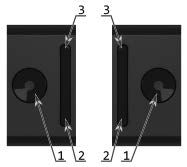
Device displayed in both left-hand and right-hand grips
- Round button for power and confirmation;
- Swing button "down.";
- Press the "up" button.
There are two ways to press the buttons: a short press and a long press (lasting at least two seconds).
A long press on the round button [1] is used to
- turn on the device;
- unlock the swing buttons;
- lock the swing buttons;
- confirm the review of the displayed list of maximum alarm levels;
- on certain setup screens.
A short press of the round button is used to:
- access the menu;
- return to display mode from the main menu;
- confirm the selection of the highlighted menu item;
- toggle the selection options.
- to disable the alarms.
The swing buttons automatically lock after 5, 10, 15, or 30 seconds of inactivity. Simultaneously, the screen's backlight turns off if it was on. Additionally, there are two extra time intervals for the display backlighting—2 and 5 minutes—where the swing buttons lock after 30 seconds of inactivity. The duration until the backlight auto-locks and turns off depends on the settings.
You can unlock these buttons by pressing and holding the round button [1]. This will also activate the screen backlight if it is enabled in the instrument settings. If there is enough light in "Auto" mode, the backlight will not turn on. The buttons can be relocked by briefly pressing the round button [1].
A short press on the up/down swing buttons [2, 3] is used to:
- navigate through menu items;
- setting numerical values.
- additional options available in various modes.
A long press on the up/down swing buttons [2, 3] serves different purposes depending on the context. In menus, it allows for quick selection of items. In scene display modes, a long press on the "up" swing button toggles the sound indication on and off.
The designation of the swing buttons as "up" or "down" depends on the screen orientation settings. As you navigate through the menu at any level, the selected item will be highlighted in negative, appearing as light on dark.
A detailed description of how to use the buttons in different modes can be found in the sections "Display Modes" and "Menu Usage".
Pressing any button is accompanied by a brief sound and vibration, depending on the settings.
Turning On and Off
These buttons can be used to turn the device on and off. To see how this can be done, refer to the Turning ON and OFF article.
Updated: Dec 10, 2025