Settings
Signals — sound, vibration, light
The device uses a combined interface: display, buttons, sound emitter, LEDs and vibration motor. Sound, light and vibration complement the display and give a response to button presses (summary table of events and signals — see section “Indication: sound, vibration, light”). The mode of sound, light and vibration signalling is selected in the menu. Alarm sounds, button sounds and clicks are turned on separately.
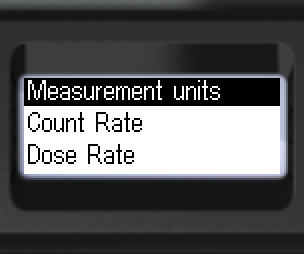
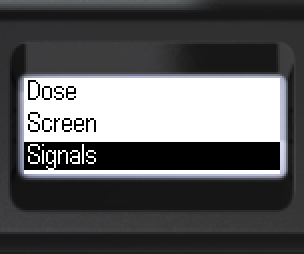
- Navigate to [Signals].
- Enter the submenu.
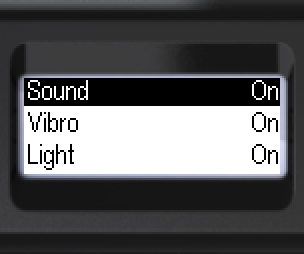
- Move focus to [Sound].
- Select: [On] — all enabled sounds, or [Off] — only the find-the-device and out-of-scale sounds remain (if enabled in the settings).
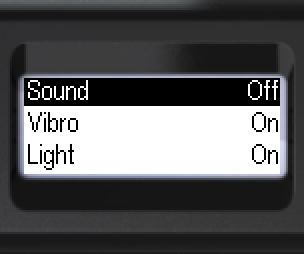
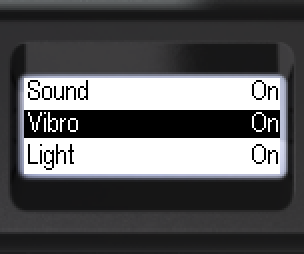
- [Vibro] and [Light] are set in the same way.
- Move focus to [Vibro] or [Light].
- Select [On] or [Off].
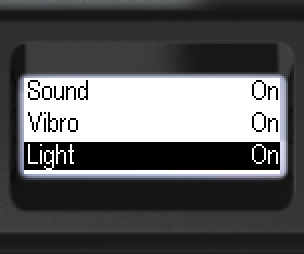
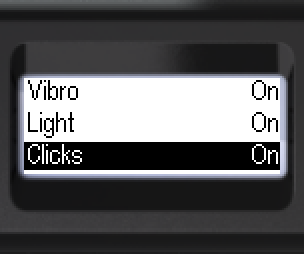
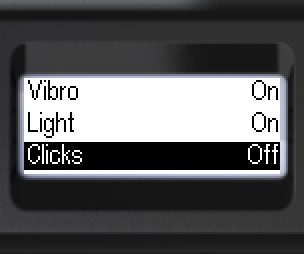
- [Clicks] — photon registration clicks, set separately.
- Move focus to [Clicks].
- Select [On] or [Off].
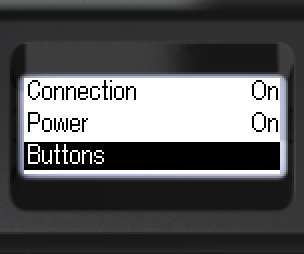
- Navigate to [Buttons].
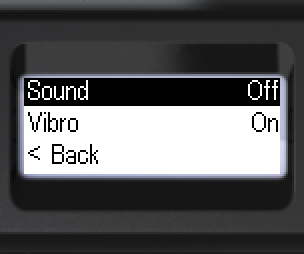
- Move focus to [Sound] or [Vibro].
- Select the response type.
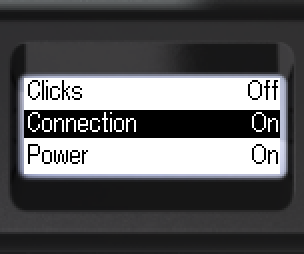
- [Connection] — connect/disconnect sound, set separately.
- Move focus to [Connection]. Select [On] or [Off].
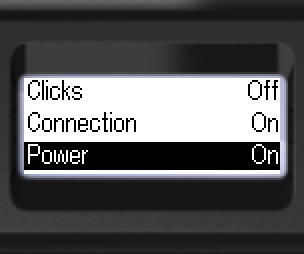
- [Power] — turning on/off sound, set separately.
- Move focus to [Power]. Select [On] or [Off].
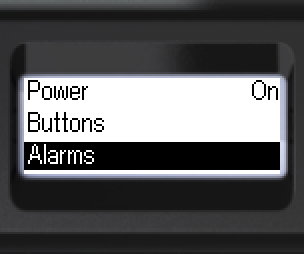
- To set up alarm signals: navigate to [Alarms].
- Confirm.
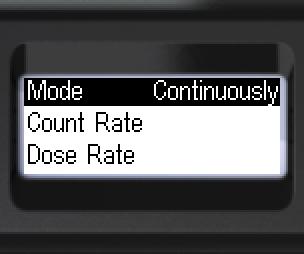
- Indication mode: [One-shot] or [Continuously].
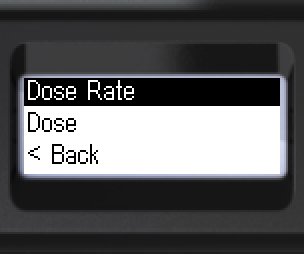
- Select a channel — for example, [Dose Rate].
- Confirm.
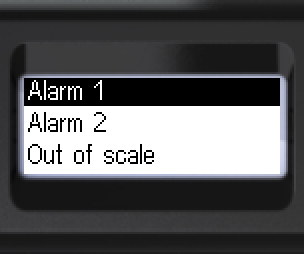
- Select level: [Alarm 1], [Alarm 2] or [Out of scale].
- Confirm.
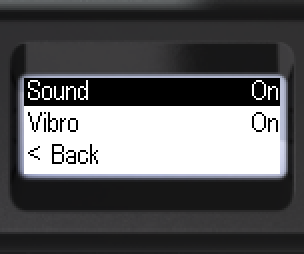
- Move focus to [Sound] or [Vibro].
- Select [On] or [Off].
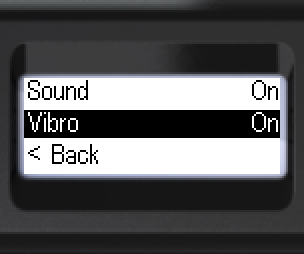
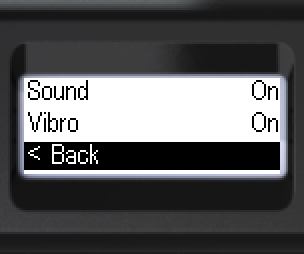
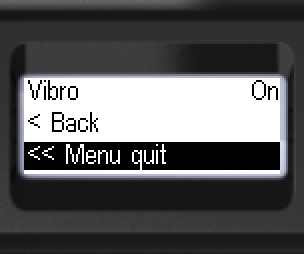
- To go back: [< Back] or [<< Menu quit].
Updated: Oct 26, 2026